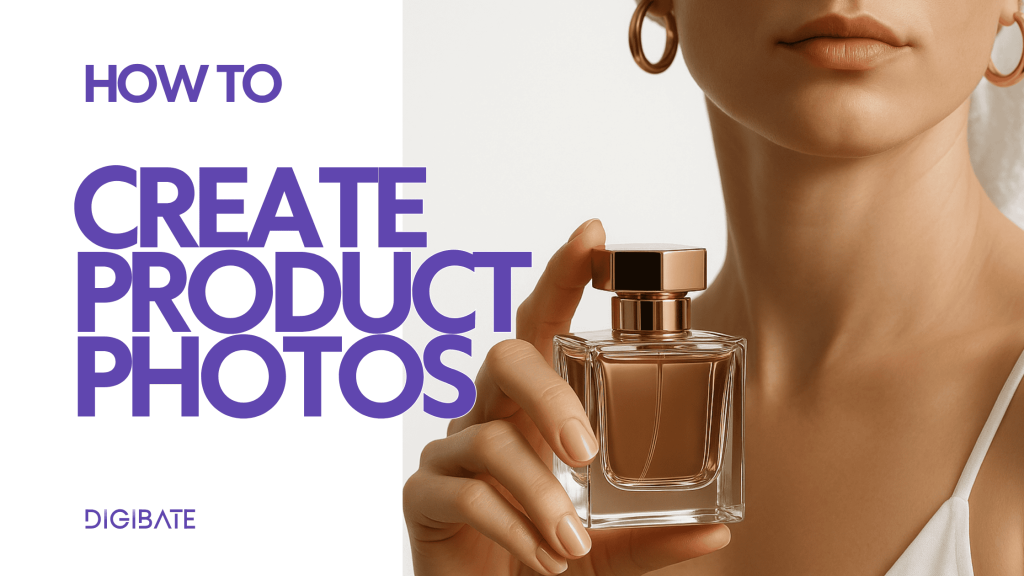
Digibate’s Product Photoshoot tool helps you transform any product into stunning, on-brand AI-generated images in just a few clicks. Whether you’re uploading a new product, using one from your catalogue, or simply dropping in an image — you can create scroll-stopping visuals for social media, campaigns, or your webshop in seconds.
🧠 What You’ll Learn
- How to select or upload a product for your photoshoot
- How to style your product using prompts or ready-made ideas
- How to generate high-quality AI images you can instantly use in content
🪄 Step-by-Step Instructions
1️⃣ Go to the Product Photoshoot Tool
- From the left-hand menu, click Product Photoshoot.
- You’ll see a two-step interface: Step 1: Select product and Step 2: Style your product.
2️⃣ Select or Upload Your Product
In Step 1, you have three options:
- 🧾 Select from Product Catalogue
If you’ve already added products to your Product Catalogue, simply choose one here. This is the fastest way to reuse products you promote often. - ➕ Add a New Product
Click “Add new product”, upload a product photo (PNG or JPG under 5MB), and fill out any product details. This saves the product to your catalogue, making it quick to use in future campaigns. - 📷 Upload a Single Image
If you just want to create an image without saving the product, you can drag and drop or upload a single photo directly into the upload box.
Once you’ve chosen or uploaded your product, it will appear in the preview area.
3️⃣ Style Your Product
In Step 2, you decide how you want your product to look:
- ✍️ Write Your Own Prompt
Describe the scenario you want.
Example: “A model wearing my product on a sunny beach”
or “Product on a marble table with soft natural light.” - 💡 Choose from Custom Ideas
After a few seconds, Digibate automatically generates custom styling ideas tailored to your product. These appear below the text box. Click on any idea to use it instantly.
This step allows you to get creative or move fast with pre-made inspiration.
4️⃣ Generate Your AI Image
Once your styling prompt or idea is selected:
- Click Next.
- Digibate will generate a single high-quality image based on your chosen product and styling.
- This usually takes just a few seconds.
5️⃣ Review, Regenerate or Use Your Image
- Once the AI has generated your styled image, it will appear on the screen.
- If you’re happy with the result, click Use Image to move it straight into your content creation flow (e.g., to create a social media post).
- If you’d like a different variation, click Regenerate — the system will create a new version using the same styling prompt.
- You can repeat this until you find the perfect image.
👉 Images you choose to use are automatically saved to your Media Library, so you can reuse them in future campaigns.
💡 Tips & Best Practices
- Using your Product Catalogue is the fastest way to create consistent branded content over time.
- The clearer your styling prompt, the better the result — mention setting, lighting, and mood.
- Try a mix of custom prompts and generated ideas — sometimes the system suggests scenarios you wouldn’t have thought of yourself.